TutorialStart here
Create your first catalog
Start a local Unity Catalog server, browse its sample data, then create a catalog, a schema, and a Delta table of your own with the uc CLI.
In this tutorial you start a Unity Catalog server on your machine, look around the sample data it ships with, and then build your own corner of the catalog: a catalog, a schema inside it, and a Delta table you write to and read back.
Start the server
Download the docs' environment and start Unity Catalog 0.7.0. Already running it? Skip this.
curl -fsSL https://docs.unitycatalog.io/env/unitycatalog.tar.gz | tar -xz
cd uc-docs-env/unitycatalog && docker compose up -d --wait
export UNITY_CATALOG_URL=http://localhost:8080/api/2.1/unity-catalog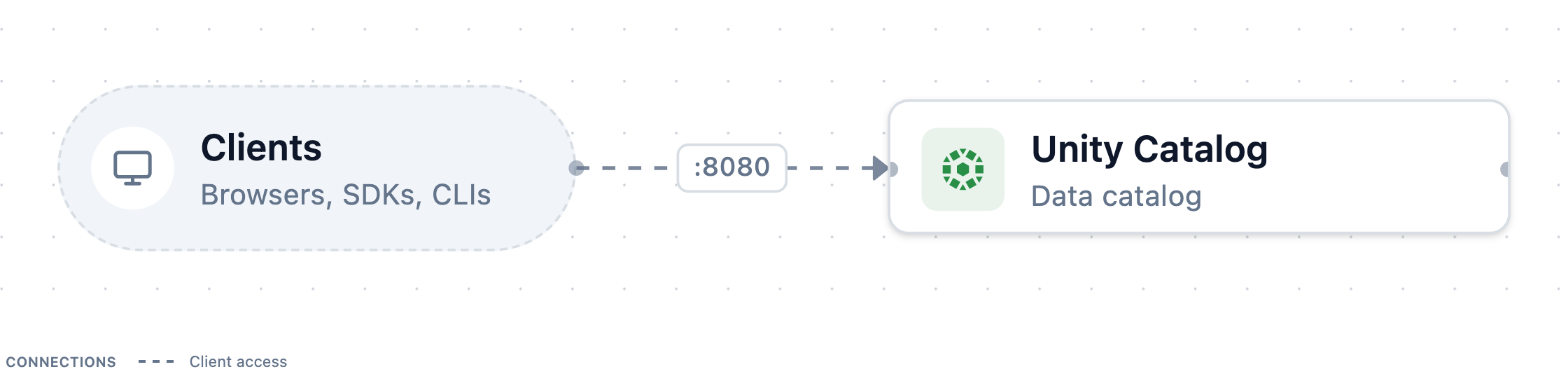
Stop it later with
docker compose downfromuc-docs-env/unitycatalog.The server now listens on
http://localhost:8080. Authorization is off, so every command succeeds without a token. That keeps this tutorial short, and it is also why this configuration must never serve anyone but you. Run a local Unity Catalog server describes the environment.Define a shortcut for the CLI
The CLI lives inside the server's container. Define this shortcut in every terminal you use:
first_catalog.shFull scriptuc() { docker exec unitycatalog bin/uc "$@"; }Browse the sample data
The server comes with two sample catalogs. List them, then look one level down at a time, through a schema to its tables:
first_catalog.shFull scriptuc catalog list --output jsonPretty uc schema list --catalog unity --output jsonPretty uc table list --catalog unity --schema default --output jsonPrettyYou see the sample catalog
unity. Its schemadefaultholds tables such asnumbersandmarksheet. Every table has a three-part name,catalog.schema.table.Read a few rows from one of them:
first_catalog.shFull scriptuc table read --full_name unity.default.numbers --max_results 5The output is a table with the columns
as_intandas_double. The CLI asked the catalog whereunity.default.numberslives, then read the Delta files at that location.Create a catalog
Now make your own. A catalog is the top level of the namespace:
first_catalog.shFull scriptuc catalog create --name quickstart --comment "My first catalog"The CLI prints the new catalog, including its generated
ID. Runuc catalog listagain andquickstartis now listed next to the samples.Create a schema
A schema groups related tables, and always belongs to one catalog:
first_catalog.shFull scriptuc schema create --catalog quickstart --name sales --comment "Order data"Its full name is
quickstart.sales.Create a table
Create a Delta table with three columns.
--storage_locationtells the catalog where the table's files live:first_catalog.shFull scriptuc table create --full_name quickstart.sales.orders \ --columns "order_id INT, customer STRING, amount DOUBLE" \ --format DELTA \ --storage_location file:///tmp/uc/ordersThis is an external table: you chose the location, and the catalog records it alongside the table's name and columns. The path is inside the container, so the files go away when you remove the container.
Write and read rows
Fill the table with sample rows, then read them back by name:
first_catalog.shFull scriptuc table write --full_name quickstart.sales.ordersfirst_catalog.shFull scriptuc table read --full_name quickstart.sales.orders --max_results 5You see rows with
order_id,customer, andamountcolumns.Clean up
Delete your catalog together with everything in it:
first_catalog.shFull scriptuc catalog delete --name quickstart --force trueLeave the server running for the next tutorial. When you're done, stop it with
docker compose down. The server keeps its metadata inside the container, so stopping it also resets the sample catalogs.
What you did
You ran a Unity Catalog server and used it the way every client does. You found data by its three-part name, and the catalog answered with metadata and a storage location. Then you registered a catalog, schema, and table of your own.
Next steps
- Core concepts explains the objects you just created and how they relate.
- Use the Python client does the same from Python.
- Manage catalogs and schemas covers updating, renaming, and deleting them.