TutorialUse Unity Catalog
Working with volumes and files
Register a folder of documents as a Unity Catalog volume, then find it by name, ask the catalog for access, and read the files with obstore.
In this tutorial you register a folder of documents as a Unity Catalog volume, then read those files the way any other application would, knowing only the volume's name. On the way you see the three steps every volume reader takes: look up where the files live, ask the catalog for access, and open them with a storage library.
It takes about ten minutes.
Start the environment
Download the docs' environment and start Unity Catalog 0.7.0. Already running it? Skip this.
curl -fsSL https://docs.unitycatalog.io/env/unitycatalog.tar.gz | tar -xz
cd uc-docs-env/unitycatalog && docker compose up -d --wait
export UNITY_CATALOG_URL=http://localhost:8080/api/2.1/unity-catalog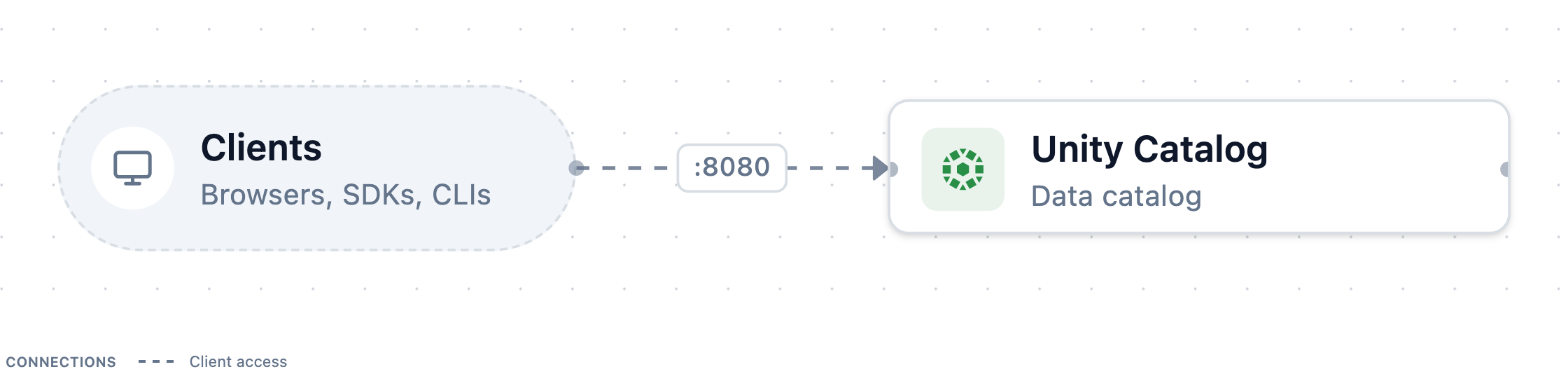
Stop it later with
docker compose downfromuc-docs-env/unitycatalog.Open a Python session
Open a Python session with the Unity Catalog client and obstore, a Python library for object storage and local files:
uv run --with unitycatalog-client==0.7.0 --with obstore==0.11.1 python -m asyncioEnter each of the following snippets in it, in order.
Connect to the server
volume_files.pyFull scriptfrom pathlib import Path import obstore from unitycatalog.client import ( ApiClient, CatalogsApi, Configuration, CreateCatalog, CreateSchema, CreateVolumeRequestContent, GenerateTemporaryVolumeCredential, SchemasApi, TemporaryCredentialsApi, VolumeOperation, VolumesApi, VolumeType, ) config = Configuration(host="http://localhost:8080/api/2.1/unity-catalog") api = ApiClient(config)Authorization is off on the local server, so the client needs no token.
Put some files in a folder
Write three short policy documents into a folder. In a real setup these files already exist, in cloud storage or on a shared file system:
volume_files.pyFull scriptfolder = Path("/tmp/uc-tutorial/policies") folder.mkdir(parents=True, exist_ok=True) (folder / "returns.md").write_text( "Items can be returned within 30 days of delivery.\n" ) (folder / "shipping.md").write_text("Orders ship within two business days.\n") (folder / "warranty.md").write_text("Electronics carry a one-year warranty.\n")Register the folder as a volume
Create a catalog and a schema, then an external volume that points at the folder:
volume_files.pyFull scriptawait CatalogsApi(api).create_catalog(CreateCatalog(name="support")) await SchemasApi(api).create_schema( CreateSchema(name="knowledge", catalog_name="support") ) await VolumesApi(api).create_volume( CreateVolumeRequestContent( catalog_name="support", schema_name="knowledge", name="policies", volume_type=VolumeType.EXTERNAL, storage_location=folder.as_uri(), comment="Customer-facing policy documents", ) )The server only records the location. It neither copies nor checks the files, which is why the folder doesn't have to be visible inside the server's container. From now on, the files have a governed name:
support.knowledge.policies.Find the volume by name
Now switch roles. You are an application that knows only the name. Ask the catalog for the volume:
volume_files.pyFull scriptvolume = await VolumesApi(api).get_volume(name="support.knowledge.policies") print(volume.full_name, volume.volume_type.value) print(volume.storage_location)The output shows
support.knowledge.policies EXTERNALand the folder'sfile://location.Ask for access
Before reading, request temporary credentials for the volume, naming what you want to do with it:
volume_files.pyFull scriptcreds = await TemporaryCredentialsApi( api ).generate_temporary_volume_credentials( GenerateTemporaryVolumeCredential( volume_id=volume.volume_id, operation=VolumeOperation.READ_VOLUME, ) ) print(creds.url) print(creds.aws_temp_credentials, creds.expiration_time) # None NoneThis is the request the catalog can refuse. With authorization enabled, the server answers only if you may use the catalog and schema (
USE CATALOG,USE SCHEMA) and read the volume (READ VOLUME), or own them. On S3, ADLS, or GCS the answer holds short-lived keys that work only for this volume's location, plus their expiry. That process is called credential vending. Local files need no keys, so here the answer carries only the location and both values print asNone.Open the volume's storage
Define a small function that turns the answer into a storage client:
volume_files.pyFull scriptfrom obstore.store import from_url from unitycatalog.client import TemporaryCredentials def open_store(creds: TemporaryCredentials): """Open the volume's directory with the credentials Unity Catalog vended.""" if creds.aws_temp_credentials: aws = creds.aws_temp_credentials return from_url( creds.url, access_key_id=aws.access_key_id, secret_access_key=aws.secret_access_key, session_token=aws.session_token, ) return from_url(creds.url) # local storage: no credentials neededWith vended AWS keys, the function passes them to obstore. Otherwise it opens the location directly. Your reading code stays the same either way.
Read the files
List the volume's files and read each one:
volume_files.pyFull scriptstore = open_store(creds) for meta in sorted(obstore.list(store).collect(), key=lambda m: m["path"]): text = bytes(obstore.get(store, meta["path"]).bytes()).decode() print(f"{meta['path']} ({meta['size']} bytes): {text.strip()}")The output shows the three documents and their sizes:
returns.md (50 bytes): Items can be returned within 30 days of delivery. shipping.md (38 bytes): Orders ship within two business days. warranty.md (39 bytes): Electronics carry a one-year warranty.Clean up
Delete the catalog, and with it the schema and the volume:
volume_files.pyFull scriptawait CatalogsApi(api).delete_catalog(name="support", force=True) print(sorted(p.name for p in folder.iterdir())) # the files are still there await api.close()Deleting an external volume removes only the catalog's record. The folder and its files stay where they are, so the last line lists all three. Leave the session with
Ctrl+D.
What you did
You gave a folder of files a governed name. Then, as a reader that knew only the name, you asked Unity Catalog where the files are and for permission to read them. Finally, you read them directly from storage. The catalog never served a byte of the files. It handed out the location and the permission, and the data came straight from storage.
Next steps
- Manage volumes covers managed volumes, renaming, and what deleting each kind does to its files.
- Credential vending explains the trust boundary behind the access request.